> ## Documentation Index
> Fetch the complete documentation index at: https://cometchat-22654f5b-docs-agentbuddy-4.mintlify.site/llms.txt
> Use this file to discover all available pages before exploring further.
# Conversation List + Message View
> Build CometChat iOS UI Kit conversation list and message view layouts with push navigation, headers, message lists, and composers.
| Field | Value |
| ------------ | ------------------------------------------------------------------------------------------------------ |
| Package | `CometChatUIKitSwift` |
| Framework | UIKit / SwiftUI |
| Components | `CometChatConversations`, `CometChatMessageHeader`, `CometChatMessageList`, `CometChatMessageComposer` |
| Layout | Push navigation — conversation list → message view |
| Prerequisite | Complete [iOS Integration](/ui-kit/ios/getting-started) Steps 1–4 first |
| Pattern | iMessage, WhatsApp, Slack |
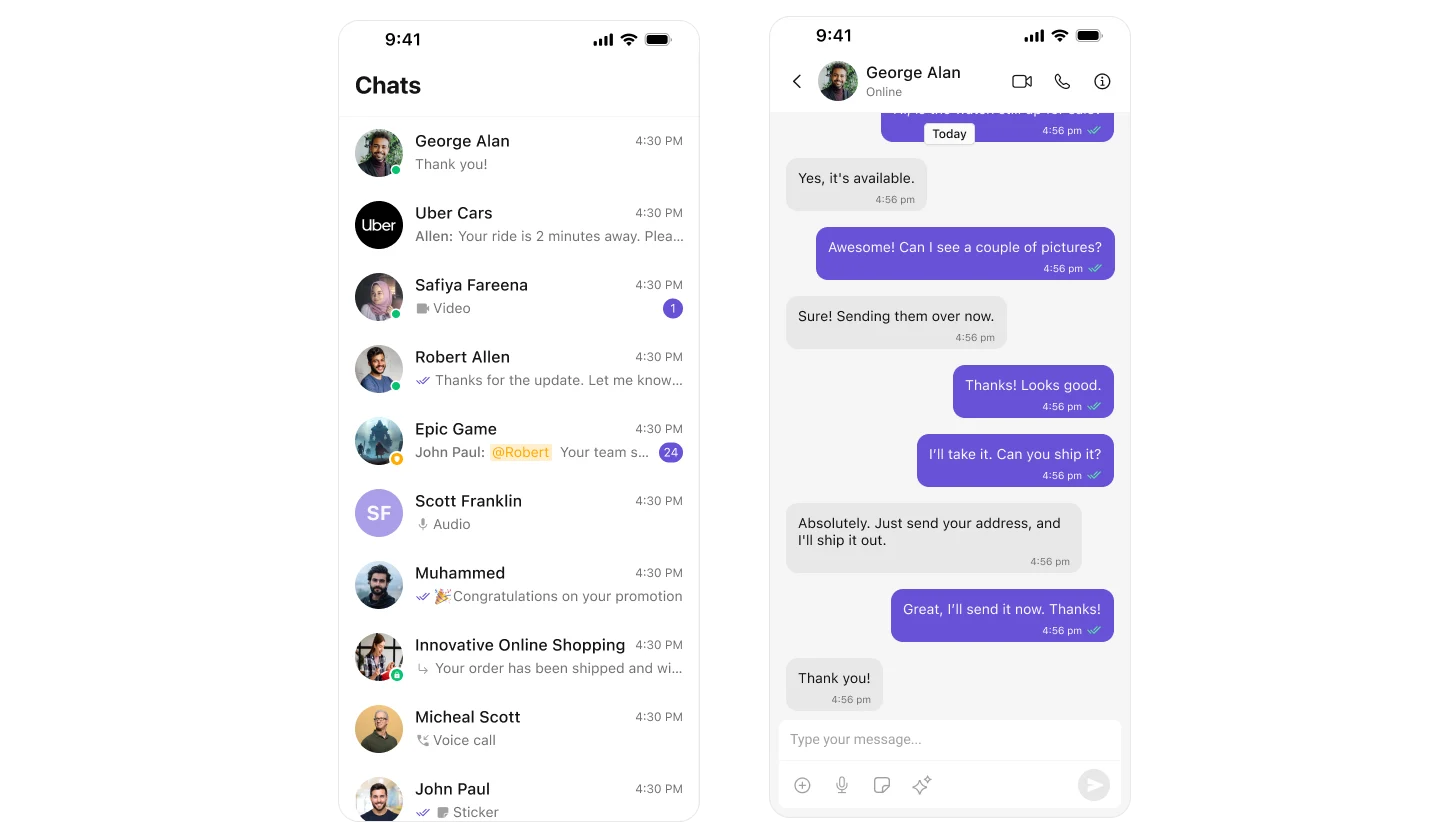
This guide builds a conversation list with push navigation to messages. Users tap a conversation to open the chat view.
This assumes you've already completed [iOS Integration](/ui-kit/ios/getting-started) (project created, UI Kit installed, init + login working, permissions configured).
 ***
## What You're Building
Three components working together:
1. **Conversation list** — shows all active conversations (users and groups)
2. **Message view** — displays chat messages for the selected conversation in real time
3. **Message composer** — text input with support for media, emojis, and reactions
***
## Step 1 — Setup SceneDelegate
Wire up the conversation list after successful login. When a user taps a conversation, push to the messages view.
```swift title="SceneDelegate.swift" highlight={13-15} lines theme={null}
import UIKit
import CometChatUIKitSwift
import CometChatSDK
class SceneDelegate: UIResponder, UIWindowSceneDelegate {
var window: UIWindow?
func scene(_ scene: UIScene, willConnectTo session: UISceneSession, options connectionOptions: UIScene.ConnectionOptions) {
guard let windowScene = (scene as? UIWindowScene) else { return }
let uikitSettings = UIKitSettings()
.set(appID: "APP_ID") // Replace with your App ID
.set(region: "REGION") // Replace with your Region
.set(authKey: "AUTH_KEY") // Replace with your Auth Key (dev only)
.subscribePresenceForAllUsers()
.build()
CometChatUIKit.init(uiKitSettings: uikitSettings) { result in
switch result {
case .success:
debugPrint("CometChat initialized")
let uid = "cometchat-uid-1"
CometChatUIKit.login(uid: uid) { loginResult in
switch loginResult {
case .success:
debugPrint("Login successful")
DispatchQueue.main.async { [weak self] in
self?.setupConversationsView(windowScene: windowScene)
}
case .onError(let error):
debugPrint("Login failed: \(error.description)")
@unknown default: break
}
}
case .failure(let error):
debugPrint("Init failed: \(error.localizedDescription)")
}
}
}
func setupConversationsView(windowScene: UIWindowScene) {
let conversationsVC = CometChatConversations()
let navController = UINavigationController(rootViewController: conversationsVC)
conversationsVC.set(onItemClick: { [weak navController] conversation, _ in
let messagesVC = MessagesVC()
messagesVC.group = conversation.conversationWith as? Group
messagesVC.user = conversation.conversationWith as? User
navController?.pushViewController(messagesVC, animated: true)
})
window = UIWindow(windowScene: windowScene)
window?.rootViewController = navController
window?.makeKeyAndVisible()
}
}
```
Key points:
* `CometChatConversations` displays the conversation list
* `onItemClick` fires when a user taps a conversation, passing the `Conversation` object
* Extract `User` or `Group` from `conversation.conversationWith` and pass to the messages view
***
## Step 2 — Create MessagesVC
Create a new Swift file for the messages view controller:
1. In Xcode, right-click your project folder in the Navigator
2. Select **New File...**
3. Choose **Swift File** and click Next
4. Name it `MessagesVC.swift` and click Create
Add the following code. This view controller assembles the header, message list, and composer.
```swift title="MessagesVC.swift" lines theme={null}
import UIKit
import CometChatSDK
import CometChatUIKitSwift
class MessagesVC: UIViewController {
// MARK: - Properties
var user: User?
var group: Group?
// MARK: - UI Components
private lazy var headerView: CometChatMessageHeader = {
let view = CometChatMessageHeader()
view.translatesAutoresizingMaskIntoConstraints = false
if let user = user {
view.set(user: user)
} else if let group = group {
view.set(group: group)
}
view.set(controller: self)
return view
}()
private lazy var messageListView: CometChatMessageList = {
let listView = CometChatMessageList()
listView.translatesAutoresizingMaskIntoConstraints = false
if let user = user {
listView.set(user: user)
} else if let group = group {
listView.set(group: group)
}
listView.set(controller: self)
return listView
}()
private lazy var composerView: CometChatMessageComposer = {
let composer = CometChatMessageComposer()
composer.translatesAutoresizingMaskIntoConstraints = false
if let user = user {
composer.set(user: user)
} else if let group = group {
composer.set(group: group)
}
composer.set(controller: self)
return composer
}()
// MARK: - Lifecycle
override func viewDidLoad() {
super.viewDidLoad()
configureView()
setupLayout()
}
override func viewWillDisappear(_ animated: Bool) {
super.viewWillDisappear(animated)
navigationController?.setNavigationBarHidden(false, animated: true)
}
// MARK: - Setup
private func configureView() {
view.backgroundColor = .systemBackground
navigationController?.setNavigationBarHidden(true, animated: false)
}
private func setupLayout() {
[headerView, messageListView, composerView].forEach { view.addSubview($0) }
NSLayoutConstraint.activate([
// Header
headerView.topAnchor.constraint(equalTo: view.safeAreaLayoutGuide.topAnchor),
headerView.leadingAnchor.constraint(equalTo: view.leadingAnchor),
headerView.trailingAnchor.constraint(equalTo: view.trailingAnchor),
headerView.heightAnchor.constraint(equalToConstant: 50),
// Message list
messageListView.topAnchor.constraint(equalTo: headerView.bottomAnchor),
messageListView.leadingAnchor.constraint(equalTo: view.leadingAnchor),
messageListView.trailingAnchor.constraint(equalTo: view.trailingAnchor),
messageListView.bottomAnchor.constraint(equalTo: composerView.topAnchor),
// Composer
composerView.leadingAnchor.constraint(equalTo: view.leadingAnchor),
composerView.trailingAnchor.constraint(equalTo: view.trailingAnchor),
composerView.bottomAnchor.constraint(equalTo: view.safeAreaLayoutGuide.bottomAnchor)
])
}
}
```
How it works:
* `CometChatMessageHeader` shows user/group info and back button
* `CometChatMessageList` displays messages with real-time updates
* `CometChatMessageComposer` handles text input, media, and reactions
* Pass either `user` or `group` to each component, never both
***
## Step 3 — Run the Project
Build and run in Xcode. You should see the conversation list. Tap any conversation to push to the messages view.
***
## Next Steps
Customize colors, fonts, and styles to match your brand
Browse all prebuilt UI components
Back to the main setup guide
Chat features included out of the box
***
## What You're Building
Three components working together:
1. **Conversation list** — shows all active conversations (users and groups)
2. **Message view** — displays chat messages for the selected conversation in real time
3. **Message composer** — text input with support for media, emojis, and reactions
***
## Step 1 — Setup SceneDelegate
Wire up the conversation list after successful login. When a user taps a conversation, push to the messages view.
```swift title="SceneDelegate.swift" highlight={13-15} lines theme={null}
import UIKit
import CometChatUIKitSwift
import CometChatSDK
class SceneDelegate: UIResponder, UIWindowSceneDelegate {
var window: UIWindow?
func scene(_ scene: UIScene, willConnectTo session: UISceneSession, options connectionOptions: UIScene.ConnectionOptions) {
guard let windowScene = (scene as? UIWindowScene) else { return }
let uikitSettings = UIKitSettings()
.set(appID: "APP_ID") // Replace with your App ID
.set(region: "REGION") // Replace with your Region
.set(authKey: "AUTH_KEY") // Replace with your Auth Key (dev only)
.subscribePresenceForAllUsers()
.build()
CometChatUIKit.init(uiKitSettings: uikitSettings) { result in
switch result {
case .success:
debugPrint("CometChat initialized")
let uid = "cometchat-uid-1"
CometChatUIKit.login(uid: uid) { loginResult in
switch loginResult {
case .success:
debugPrint("Login successful")
DispatchQueue.main.async { [weak self] in
self?.setupConversationsView(windowScene: windowScene)
}
case .onError(let error):
debugPrint("Login failed: \(error.description)")
@unknown default: break
}
}
case .failure(let error):
debugPrint("Init failed: \(error.localizedDescription)")
}
}
}
func setupConversationsView(windowScene: UIWindowScene) {
let conversationsVC = CometChatConversations()
let navController = UINavigationController(rootViewController: conversationsVC)
conversationsVC.set(onItemClick: { [weak navController] conversation, _ in
let messagesVC = MessagesVC()
messagesVC.group = conversation.conversationWith as? Group
messagesVC.user = conversation.conversationWith as? User
navController?.pushViewController(messagesVC, animated: true)
})
window = UIWindow(windowScene: windowScene)
window?.rootViewController = navController
window?.makeKeyAndVisible()
}
}
```
Key points:
* `CometChatConversations` displays the conversation list
* `onItemClick` fires when a user taps a conversation, passing the `Conversation` object
* Extract `User` or `Group` from `conversation.conversationWith` and pass to the messages view
***
## Step 2 — Create MessagesVC
Create a new Swift file for the messages view controller:
1. In Xcode, right-click your project folder in the Navigator
2. Select **New File...**
3. Choose **Swift File** and click Next
4. Name it `MessagesVC.swift` and click Create
Add the following code. This view controller assembles the header, message list, and composer.
```swift title="MessagesVC.swift" lines theme={null}
import UIKit
import CometChatSDK
import CometChatUIKitSwift
class MessagesVC: UIViewController {
// MARK: - Properties
var user: User?
var group: Group?
// MARK: - UI Components
private lazy var headerView: CometChatMessageHeader = {
let view = CometChatMessageHeader()
view.translatesAutoresizingMaskIntoConstraints = false
if let user = user {
view.set(user: user)
} else if let group = group {
view.set(group: group)
}
view.set(controller: self)
return view
}()
private lazy var messageListView: CometChatMessageList = {
let listView = CometChatMessageList()
listView.translatesAutoresizingMaskIntoConstraints = false
if let user = user {
listView.set(user: user)
} else if let group = group {
listView.set(group: group)
}
listView.set(controller: self)
return listView
}()
private lazy var composerView: CometChatMessageComposer = {
let composer = CometChatMessageComposer()
composer.translatesAutoresizingMaskIntoConstraints = false
if let user = user {
composer.set(user: user)
} else if let group = group {
composer.set(group: group)
}
composer.set(controller: self)
return composer
}()
// MARK: - Lifecycle
override func viewDidLoad() {
super.viewDidLoad()
configureView()
setupLayout()
}
override func viewWillDisappear(_ animated: Bool) {
super.viewWillDisappear(animated)
navigationController?.setNavigationBarHidden(false, animated: true)
}
// MARK: - Setup
private func configureView() {
view.backgroundColor = .systemBackground
navigationController?.setNavigationBarHidden(true, animated: false)
}
private func setupLayout() {
[headerView, messageListView, composerView].forEach { view.addSubview($0) }
NSLayoutConstraint.activate([
// Header
headerView.topAnchor.constraint(equalTo: view.safeAreaLayoutGuide.topAnchor),
headerView.leadingAnchor.constraint(equalTo: view.leadingAnchor),
headerView.trailingAnchor.constraint(equalTo: view.trailingAnchor),
headerView.heightAnchor.constraint(equalToConstant: 50),
// Message list
messageListView.topAnchor.constraint(equalTo: headerView.bottomAnchor),
messageListView.leadingAnchor.constraint(equalTo: view.leadingAnchor),
messageListView.trailingAnchor.constraint(equalTo: view.trailingAnchor),
messageListView.bottomAnchor.constraint(equalTo: composerView.topAnchor),
// Composer
composerView.leadingAnchor.constraint(equalTo: view.leadingAnchor),
composerView.trailingAnchor.constraint(equalTo: view.trailingAnchor),
composerView.bottomAnchor.constraint(equalTo: view.safeAreaLayoutGuide.bottomAnchor)
])
}
}
```
How it works:
* `CometChatMessageHeader` shows user/group info and back button
* `CometChatMessageList` displays messages with real-time updates
* `CometChatMessageComposer` handles text input, media, and reactions
* Pass either `user` or `group` to each component, never both
***
## Step 3 — Run the Project
Build and run in Xcode. You should see the conversation list. Tap any conversation to push to the messages view.
***
## Next Steps
Customize colors, fonts, and styles to match your brand
Browse all prebuilt UI components
Back to the main setup guide
Chat features included out of the box